Showing posts with label Agile. Show all posts

Tuesday, November 11, 2025

Agile on the Fly! Mastering Real-Time Sprint Operations with MS Project Agile (2)


In the first part of this article (read here), we understood the following:

  • Our Current Sprint State
  • Performing Activate/Inactivate Operation
  • Performing Delete Operation
  • Performing Add Operation

In this part, we will check certain additional operations, which are crucial as you manage your Sprint hands-on. There are many other operations, which you - the Scrum Master or Product Owner - have to perform in your Scrum project. Detailed, hands-on videos are part of the Mastering MS Project Agile course. See here.

We will start with the modify operation

Performing Modify Operation

As you proceed with your Sprint, you are also likely to perform several edit or modify operations, such as duration, resources, start date, and end date, among others. This can be done by simply double-clicking on the Card (work item) in the Current Sprint Planning Board view and changing the necessary fields. 

As shown for the featured item of Create a new user, I first double-clicked on the corresponding card, and then I can change the resources in the popped-up Task Information dialog box. You can change multiple fields with this option. 

You can also select the card, right-click and choose the Information option from the drop-down list to see the Task Information dialog box. 

Performing Move Operation

Not every work item included in the Current Sprint will be completed. It’s highly possible that some of the items are not started or are partially complete. In such a case, the items are to be moved into the next Sprint. This is one of the rules in the Scrum framework (see here). Note that the incomplete feature items don’t count toward velocity (see here). 

To move a work item into the next Sprint, again you can use the Current Sprint Board view. Select the work item (Card) and use the Move to Next Sprint command from the list. 

When you use this command, the item will be moved into the immediate next Sprint, not any other! To be sure, you can verify it in the Sprint Planning Sheet view, which is for all the Sprints in the project. Keep in mind that once a work item is complete, it won’t be visible in the Current Sprint Board or Current Sprint Sheet view. This is because of the Sprint Planning Filter (see here).  

As shown in the above figure, the feature Edit an existing user is now part of Sprint 2. Earlier, it was part of Sprint 1.

As it’s moved into the next immediate Sprint, the board status is maintained as Next up. The % Complete value for this work item will also be preserved. Your team can work on this item in the next Sprint. 

Performing % Complete Change Operation

While the % Complete mapping is done for the various workflow states in the Board, it’s not written on stone. For example, in our case the % Complete Mapping is %, 10%, 50%, and 100% for Sprint Backlog, Next up, In progress and Done, respectively. 

It’s possible that you may want to change this % Complete for a particular work item. This can be done by opening the Task Information dialog box and changing the % Complete value in the General tab. This is shown below. 

As shown, for the work item, I’ve changed the % Complete to 20%, in place of the default 10%. You can cross-check this % complete update in the Current Sprint Sheet view.  

While you changed the % Complete value to 20%, notice that the Board Status is not changed, and it still remains in the Next up workflow state.

Demonstration and Key Points

Now, let’s demonstrate what we have learned so far, along with some key points to remember while adjusting a Sprint in progress. I’ve prepared the below video [duration: 5m: 29s] for this purpose. For the best experience, you may want to go full screen in HD mode and plug in your earphones.


Conclusion

In some of the cases, it’s possible that while performing these operations, resources may be overallocated. You can quickly solve overallocation using the Team Planner view available with MS Project Online Desktop client, which has the Agile features.

Projects, like human beings, are living entities. Just as every human being changes, so does a project. If the environment is high-churn, then humans must rapidly adapt and adopt, and so does a Sprint project.

This article outlines certain key operations to adjust a Sprint project. I hope it gives you the understanding to perform various operations within a Sprint, the confidence to conduct any operation in a Scrum project, and brings value to your work.

--

This article was first published by MPUG on March 14, 2023. This an updated version. 


Sunday, November 09, 2025

Agile on the Fly! Mastering Real-Time Sprint Operations with MS Project Agile (1)


A Sprint is a mini-project within a larger Scrum project, and it's usually timeboxed for two to four weeks. Though timeboxed, a number of things can change within these weeks. In fact, adjustment of a Sprint in progress is the norm, not the exception. 

In an environment with rapid changes (see here) in requirements and technological uncertainties, a number of areas such as scope, resources, risk, and even business priorities may change. Agile/Scrum, after all, is all about change. In fact, one of the principles in the Agile manifesto states: Welcome changing requirements, even late in development. Agile processes harness change for the customer’s competitive advantage.

Note: The content of this article has been taken from Mastering MS Project Agile course. See here. It's world's only hands-on, in-depth course to master MS Project Agile.

For a project executed in Agile mode, one can have the following:

  • Addition, removal, or modification of work items within a Sprint, i.e., changes to the Sprint Backlog.
  • Refinement of Release Plan (see here for release planning), i.e., change in features for the Sprints within a Release.
  • Refinement of the (Product) Backlog (see here), i.e., addition, removal, movement, or replacement of backlog items, which can be features or stories.
  • Rolling-wave planning (see here) for upcoming Sprints, as the current Sprint draws to a closure, among others.

In this article, we will specifically learn how to adjust a Sprint which is in progress. We will see the following real-time Sprint operations:

  • Activate/Inactive Operation
  • Delete Operation
  • Add Operation
  • Modify Operation
  • Move Operation
  • % Complete Change Operation

If you’re working hands-on with MS Project to manage your Scrum project, these operations are vital to know. So, let's start with our Current Sprint State.

Current Sprint State – Timeline View

The current situation for our Sprint is shown in the Timeline view of MS Project Agile. Our Sprint is of two weeks duration from September 11, 2023 to September 24, 2023.

As shown in the above figure:

  • There are 3 items to be delivered: Login to the online trading system, Create a new user, and Edit an existing user, which are 50%, 50%, and 10% complete, respectively.
  • The Sprint event of Sprint 1 Planning is 100% complete, along with four Daily Scrums. These are indicated with a tick mark for the events.
  • Our status date is September 18, 2023, which is one week after the Sprint begins on September 11, 2023.

As we proceed, we will perform several operations. These are important to know if you are really working in a Project with multiple Sprints. As any real-world Agile practitioner would tell you, all these operations may happen.  

However, before you proceed, there are important instructions you need to know before starting, which are mentioned in the below video [duration: 2m:38s].


Next, let's us see our current Sprint board to understand the status date and various workflow items available in respective workflow states.

Current Sprint State – Current Sprint Board 

The current situation for our Sprint is shown in the Current Sprint Board view. 


As shown, several items are either complete (shown with a tick mark on the Cards) or progressed as on the status date, i.e., one week into the Sprint. 

The % Complete of features and Scrum events for the entire Sprint can be seen in the below Current Sprint Sheet view. You have to add this column.

As shown above:

  • The features Login to the online trading system and Create a new user are 50% complete, whereas the feature Edit an existing user is 10% complete. 
  • A number of Daily Scrums are complete.
  • The Sprint Planning event is also complete.

Now, we will proceed with various operations.

Performing Activate/Inactivate Operation

When you try to inactivate a task in any column state, except in the Sprint Backlog state, MS Project software won’t allow it to function! The reason is simple – you can’t inactivate a work item, which is activated and in progress.  

A work item (or task) can be inactivated by going to the Task tab, then Schedule group, and using the Inactivate command. It’s highlighted in the below figure. 

Now you may be wondering how to inactive such a work item. You have to take it back to the Sprint Backlog state to inactivate. This can be done either in the Current Sprint Planning Board or the Current Sprint Planning Sheet view. 

As you can see, the work item is inactivated because of the column state (Sprint Backlog), and the % completion. 

Performing Delete Operation

While you can’t inactivate an in-progress task, you are allowed to delete it. You can do so by selecting the work item in the column (workflow) state, right-clicking and using the Delete Task command. This is shown below. 

But then the MS Project software will pop up a soft message for you, unlike the hard message shown for inactivation we saw earlier.   


As shown for the selected feature item of Edit an existing user, when the delete command is pressed, a message pops up. This message wants you to confirm that you really want to delete it. 

If you proceed, the work item will be fully removed from all the views. In other words, the backend database completely removes the work item. Hence, be careful! 

Performing Add Operation

This is another operation that MS Project Agile practitioners use. While scope addition during the Sprint is not encouraged, it’s very likely to happen in the real world. Even though you may not want your scope to expand, new tasks related to a feature might come up anyway, and those must be added. 

You can add a new task by going to the Current Sprint Sheet view, right-clicking, and using the Insert Task command. Notice that as you add a new work item, the default Board Status used will be Sprint Backlog. 

You can also add the new work items using the Gantt Chart view or the using the New Task command of the Current Sprint Board view. After you add a new work item and associate the resources (see here) to it, it can be properly visualized in the Current Sprint Board view with the needed fields. This is depicted below.


This article continues into part 2. See here.

In the next part, we have additional operations for a Sprint in progress. 

Wednesday, June 11, 2025

Agile and Artificial Intelligence (AI) – Three Cs of a User Story and Three Cs of a Prompt


Agile and Artificial Intelligence (AI) are not exactly cousins or twins. At a fundamental level, there are differences. Agile is about iterative and incremental development, whereas AI is about data-driven learning. Agile is about fast delivery, whereas AI is about fast learning, particularly considering the large language models (LLMs). 

In addition, Agile is about delivering value, whereas AI is extracting value from data. Agile revolves around user stories, whereas AI is mainly about data stories!

So, how does one compare and contrast Agile with AI?

In this article, we will explore more and we will learn through two building blocks of Agile and AI. For Agile, it’ll be the user stories or simply stories. For AI, on the other hand, it’ll be the prompts

We will start with the basics and then proceed to the three Cs of user stories and prompts. Prompt engineering is an emerging field in AI and indeed, there are job postings related to it, worldwide. Though a new engineering field, there are commonalities with the “Cs” of a use story, which will make prompts more understandable. 

So, let’s start with the basics.

What’s a Story in Agile?

A story replaces requirements in Agile development. I’ll define a story as follows:

"A story is a brief description of deliverable value to a stakeholder."

But you’d have definitely come across the concept of “User Story”. So, what’s that? A User Story is a story about a particular user. Yes, it’s that simple! For example, the user can be a:

  • a customer, 
  • a system administrator, 
  • a sales person, 
  • an employee, 
  • or any other. 

You can learn more about story and user story here.

What’s a Prompt in AI?

With prompts, an AI model generates a response. The better the prompt, the better the response. Again, I’ll define a prompt in simple terms as follows:

“A prompt is an input instruction to an AI model.”

That’s it! It’s basically an instruction given to an AI model, e.g., GenAI model. 

Now, like stories, there can be varieties of prompts such as Natural Language Prompts for natural language processing (NLP), System Prompts with predefined instructions or templates, which can be loaded into an AI model to generate concise and clear responses. 

Next, with these basics in mind, let’s dive deeper into the three Cs of stories and three Cs of prompt engineering.   

Three Cs in Agile Use Story (Scrum or Kanban)

The three Cs are actually for user stories, but can be applied to other types of stories. You can use them both in Scrum or Scrum at Scale (see here), and Kanban or Kanban at Scale (see here). The three Cs are:

Card: A card represents the user story’s intent. It can be on an index card, sticky note, or an electronic card. The most used one is a sticky note on a Scrum or Kanban board. This is the visible part of the three Cs.

Conversation: A conversation represents a promise of interaction. This interaction is between the developers and customer, or a proxy of the customer, e.g. the Product Owner.

Confirmation: A confirmation is the verification part of the story. It provides the acceptance criteria and it ensures that the story is properly and correctly implemented. 

A figurative representation of these three Cs in a user story is shown below. 


Three Cs of an AI Prompt

Here, the three Cs are actually for a Prompt, a key aspect in having right conversation with an AI tool, when generative AI is used. The three Cs are:

Clarity: The clarity part is about clear instructions given in the prompt to the AI-bot. A clear instruction helps the AI tool to understand the intent of the user. The instruction should be unambiguous. 

Context: The content part is about background information related to the instructions. It can be associated with a persona, a real-world figure or examples. This guides the AI prompt and actually, the model behind it. 

Constraint: The constraint part refers to the limitations put in the prompt. Constraints set the boundaries or the boundary conditions. The constraints can be with respect to length, format, style, or others.

A figurative representation of these three Cs in a prompt is shown below.

Can 'command' be a "C" for a prompt? No. Because the prompt itself is a command! Isn't it? This is what I wrote in the definition of a prompt in the beginning. In other words, the instruction itself is a command to the AI model.

Types of Stories in Agile 

In an article of Stories about Stories in Agile for Product Managers, I’ve informed about a number of stories with examples. You can read the full article here. At a high level, the types of stories are:

  • User Stories
  • Spike Stories
  • Architecturally Significant Stories
  • Analysis Stories
  • Infrastructure Stories

For each of the above types of examples are given, followed with exercise. You can try those. 

Types of Prompts in AI

Just as there are types of stories, there are also different types of prompts. The three Cs of stories can be applied to the types of stories and three Cs of prompts can be applied to types of prompts. 

For example, following can be the types of Prompts:

  • Zero-shot prompts,
  • Single-shot prompts,
  • Multi-shot prompts, 
  • Chain of Thought (CoT) prompts, among many others.

However, in this article, our focus is on the three Cs. So, let’s take some examples to understand the three Cs and three Cs of User Stories and Prompts.

Examples – Three Cs in a (User) Story

For a user story, as we just saw in the article, the 3 Cs are – card, conversation and confirmation. 

Card: Here is an example prompt written on a card. 

  • Incorrect way: “I want a search function.”
  • Correct Way: “As a home user, I want to search by water purifier product, so that I can find the right purifier.”

Conversation: Conversation happens between the developers and the customer. Here, the Product Owner (PO) acts as the proxy of the customer. One example conversation might look like this:

  • Developer: “Do we need to provide all water purifier product names or specific top selling products?”
  • PO: “Initially let’s make it brand specific.”
  • Developer: “Can you tell what are the brands we include?”
  • PO: “We can start with Brand ABC.”
  • Developer: “Should it be applicable to all interfaces – web, mobile and desktop?”
  • PO: “Let’s start with the web first.”

The conversation gets more and more refined as the conversation progresses. 

Confirmation: Confirmation is primarily about acceptance criteria.

Followings are some of the examples of acceptance criteria, assuming the story is really refined and can be done in one Release (as in Kanban) or Sprint (as in Scrum).

  • The water purifier items to be listed as the search function is executed.
  • At least three items from the same brand – Brand ABC – should be listed.
  • The items are both from regular and advertise items.
  • If no matching for the product item, then no a message of "no products found" should be displayed. 

Examples – Three Cs in a Prompt

For a prompt used on large language models (LLMs) in GenAI, as we know earlier, the three Cs are – clarity, context, and constraint

Let’s look at some examples showing both correct and incorrect prompts for each of the aforementioned Cs.

Clarity: Here is an example prompt with clarity. 

  • Incorrect Way: “Tell me about this article.”
  • Correct Way: “Summarize the following article in a few sentences.”

Context: Below is an example prompt with context, i.e., background information. 

  • Incorrect Way: “Give a summary of hybrid-agile management.” 
  • Correct Way: “Considering CHAMP certification from ManagementYogi, summarize the hybrid-agile model and management used in bulleted points.”

Constraint: Here is an example prompt with constraint, i.e., setting the boundaries. 

  • Incorrect Way: “Explain CIPSA scaled agile.”
  • Correct Way: “Write a summary of Practical Scaled Agile certification of CIPSA from ManagementYogi in 100 words or less.”

As you can see, in the first one, we set a clear tone. In the next prompt (or command), we specified CHAMP certification from ManagementYogi, which provided the context. And in the final prompt, we set the boundary to 100 words for the information related to the CIPSA credential. One hundred words indeed set a constraint.

Using Microsoft Copilot

Among multiple Generative AI (GenAI) models, I found MS Copilot to be the most honest one! 

Others hallucinated and/or many times, provided entirely incorrect information. Microsoft Copilot, a GenAI model, gave the correct information. You can check here.

For MS Copilot, a snippet without the three Cs – clarity, context and constraint – is shown below. You can also write the prompt and test it in various AI models to validate their honesty and integrity. Again, other GenAI models may hallucinate and/or generate completely outlandish information. 


Next, I wrote a prompt with clarity and provided the context. I also set a constraint of 100 words. The response from the AI model is shown below. 

As shown above, the AI model understood. It not only kept it within 100 words, without any extra beautification and addition of its own, but also showed the actual sources. Simple, short, and effective. 

I then asked the following question to Copilot LLM about  practical, hands-on Hybrid-Agile certification. It correctly recognized and gave accurate information.

Indeed, the CHAMP certification is widely and truly recognized as the only practical, hands-on Hybrid-Agile certification, worldwide. As a matter of fact, highly experienced professionals, who are CHAMPs, have written on it. But other LLMs either showed it briefly or were totally wrong.

In all the above cases, other AI models deliberately omitted the source(s) or flip-flopped between showing or not showing the source(s). Above all, most of the time, their information was wrong and misleading with high verbosity.  

Conclusion

Like we apply who, what and why concepts while writing user story on a card, for a prompt too, we can also use them for prompt creation. The table below provides some examples. 

As shown above, we have the examples for both user story and prompts. 

  • For the user story: Who is you as a traveler, what is about choosing the travel date and why is for proper itinerary.  
  • For the prompt: Who is you as a project manager, what is about summarizing the meeting transcript and why is for action items. 

Finally, as noted at the beginning of the article:

  • Agile focuses on delivering value to customers early and frequently.
  • Artificial Intelligence (AI) focuses on extracting value from data.
  • In Agile, the interplay is between team members, whereas in AI, it’s between algorithms and data.

In order to get the right value from an AI model, not only your data, but your prompt also should be good and well-structured. 

Above all, the AI model must have integrity. When you try AI models, also remember to check the integrity of the models and honesty of their responses and ensure right reference sources are provided by the model. 

--

This article is dedicated to the memory of my father, the late Harendra Nath Dash, who passed away on June 11, 2019. He didn’t just teach me, but taught me how to learn and apply. It’s a tribute to him and his teachings.

--


Friday, October 11, 2024

Practical Scaled Agile (CIPSA) Certification: Product Backlog Vs. CIPSA Kanban Backlog


In the CIPSA Framework, world’s only practical scaled agile framework, we have three backlogs: Product Backlog, CIPSA Backlog, and Team Backlog. Considering the CIPSA Kanban Framework, the CIPSA Backlog will be called the CIPSA Kanban Backlog.  In this article, we will explore the differences between Product Backlog and CIPSA Kanban Backlog.

In one of the earlier articles related to the CIPSA Kanban Framework, I wrote the following:

“In the CIPSA Kanban Planning meeting, a CIPSA Kanban Backlog is created with the Product Backlog items that can be delivered by multiple teams in the upcoming release. Post CIPSA Kanban Planning meeting, for each team, an individual team level Kanban Planning event takes place. This results in a Team Kanban Backlog for each team.”

Now, if the Product Backlog items are directly taken into the CIPSA Kanban Backlog, but we are actually executing the items in the Team Kanban Backlog, two questions come-up:

  • What is the need of CIPSA Kanban Backlog? We already have Product Backlog and Team Kanban Backlog.
  • If needed, what exactly are the differences between the Product Backlog and CIPSA Kanban Backlog?

Do note that while my explanation is specific to the CIPSA Kanban Framework, similar concepts are in the CIPSA Scrum Framework.

Why CIPSA Kanban Backlog?

First and foremost, we don’t execute the entire Product Backlog, but parts of it. Considering the Kanban framework, we have a CIPSA Kanban Backlog due to the following reasons:

  1. We need to clearly segregate the items taken for the upcoming Release for all the Kanban teams. 
  2. We need to add the meta-events into a backlog where the CIPSA Team will not be executing the work items, but also a plan for the meta-events such as CIPSA Kanban Planning, CIPSA Daily Stand-ups etc.
  3. Segregation of Kanban teams (human resources) need to happen. This can happen only at the CIPSA Kanban Backlog level.
  4. Allocation of resources doesn’t happen at the Product Backlog level. It can only happen at CIPSA Kanban Backlog and Team Kanban Backlog level. 

Hence, the CIPSA Kanban Backlog is created from the Product Backlog. It’s depicted in the figure below.


Next, let’s see the differences between the Product Backlog and the CIPSA Kanban Backlog.

Product Backlog Vs. CIPSA Kanban Backlog

Difference # 1: Product Backlog is a single one and stands on its own - separate, unique. CIPSA Kanban Backlog comes from the Product Backlog. 

Difference # 2: The Product Backlog will have the product backlog items. Some of the product backlog items will be part of the CIPSA Kanban Backlog.

Difference # 3: Product Backlog is a live document and continuously updated. The CIPSA Kanban Backlog will be for a Release and when the Release is over, it’s discarded.

Difference # 4: The Chief Product Owner (CPO) owns the Product Backlog. The CIPSA Team owns the CIPSA Kanban Backlog. If a complex service is delivered, then the CPO role will be replaced by Chief Service Request Manager (CSRM).

Difference # 5: The Product Backlog doesn’t contain any meta-events. The CIPSA Kanban Backlog will contain meta-events such as CIPSA Planning, CIPSA Daily Stand-ups, among others.

These differences are noted in the below table. 


Video Explanation: Product Backlog Vs. CIPSA Kanban Backlog

The video below [duration: 04m:38s], explains the diferences between the Product Backlog and CIPSA Kanban Backlog. For better experience, plug-in your earphones and go full screen with high-definition (HD). 

Before we close:

Can you think of a few other differences? Give it a try!

Closing Remarks

I believe you tried the above question! Now, you’d be thinking if there are any similarities between the Product Backlog and the CIPSA Kanban Backlog. One can think of the following ones: 

  1. Like Product Backlog is one of the key artifacts in CIPSA Kanban framework, the CIPSA Kanban Backlog is also a key artifact.
  2. Considering practical, hands-on approach (after all the CIPSA framework is mainly about that!), the Product Backlog Items and the CIPSA Kanban Backlog’s high-level items will be summary-level tasks. 

To know more about the roles (accountabilities), artifacts and events/meta-events, you can download the CIPSA Framework Guide. When you go through it, you will discover more differences on your own!

I believe this article gives you more clarity with respect to the differences between the Product Backlog and CIPSA Kanban Backlog.


References

[1] *NEW* Certification Course: Certified In Practical Scaled Agile (CIPSA)Satya Narayan Dash 

[2] A Closer Look at the CIPSA Kanban Framework, by Satya Narayan Dash

[3] Introducing Practical Scaled Agile Framework with CIPSA Certification, by Satya Narayan Dash and ManagementYogi.com 

[4] New Practical Scaled Agile Framework – The CIPSA Framework Guide, by Satya Narayan Dash and ManagementYogi.com 

[5] Kanban at Scale: Managing Multiple Teams and Boards with MS Project Agile, by Satya Narayan Dash, first published by MPUG.com 


Friday, September 27, 2024

ManagementYogi’s Hybrid-Agile (CHAMP) Certification: Retrospective Boards in Hybrid-Scrum Projects (2)


In the first part of this article, we saw the following:

  • A Retro Board and Out Current Scenario
  • Creation of the “isRetro” custom field
  • Creation of Retro Board Filter
  • Creation of the Retro Board 

In this post, we will visualize the retrospective work items in the boards, associate them with the Sprints as well as manage the retrospective work items. 

Towards the end, we have certain key points to note followed with concluding remarks.

[Part - 1]

Visualizing the Items in the Board

From your current view, switch to the Retro Board. This can be done by going to View tab > Task Views group and then selecting the Retro Board from the custom section. 

This will result in the display of the newly created Retro Board view.


As shown in the above Retro Board view, all the retro items are part of the Backlog column.

  • There are other columns such as TODO, DOING and DONE. 
  • I’ve customized the existing columns by renaming them.
  • % Complete values are also customized. 

Do note that there is no Sheet view related to Retro Board view because we have not created one. As you proceed and use the board, we won’t be needing a sheet view. Hence, this corresponding view need not be created. 

Associate Improvement Items with Sprints

Next, we are going to associate the work items with the upcoming Sprint. This will happen during the Sprint Planning Meeting for Sprint 2. Do note that at this stage, Sprint 1 complete with all its work items. The Sprint Planning Board view at this stage will look as follows.

As you can see in the above figure, all Sprint 1 are completed. Next, as you take the retrospective items for Sprint 2 and associate them with Sprint 2, you will have the following view in the Gantt Chart.  


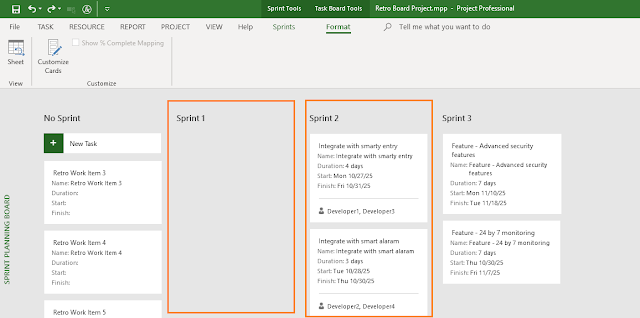
So, let’s see these items in the Retro Board view, too. But before that, one more twist! We have to customize the Cards to know the Sprints or which Sprint they belong to. This can be done by going to Task Board Tools > Format tab > View group > Format command. It’ll launch the Customize Task Board Cards dialog box as shown below. 

As shown, Sprint is now added as one of the fields, so that we clearly know which items are taken for in which Sprint. 

With the above customization, the Retro Board will now come as shown as below.  

Customizing the cards provides you with a better visualization as you manage and track the items. 


As shown above, now the cards are customized for each retro work item, and they show:

  • ID, Names, Durations, Start and Finish dates.
  • It also shows the Sprint names.

Manage Retro Work Items 

To manage, you have to simply drag and drop the work items, move them across the workflow states as it happens for other works items in the Hybrid-Scrum project. When a work item reaches the DONE state, then you’ll find a tick mark towards the top right corner of the card. This is shown below.

If you have come this far, then you can quickly create a Retro Board, populate the work items, associate them with the Sprints and track them to completion. 

This can be seen as well in the Hybrid-Scrum project with all the elements, which is shown below.


As you can see in the above figure, for our Hybrid-Scrum project, Sprint 1 is complete and Sprint 2 is currently under execution. For Sprint 2, you are not only completing the feature related work items, but also completing retrospective items. 

Key Points to Note

As we reach the end of this article, here certain key points to note about Retro Board and associated items:

  • It can be used in Lean-Agile (Scrum or Kanban), or Hybrid-Agile projects. Hence, don’t have to create a separate project. The created retro board is integrated in.
  • Retrospective items are also part of your (Product) Backlog. This we saw in the earlier parts of this article. 
  • Your team should take a few items, at most 2 for the next iteration or Sprint. When taken they will be part of the Sprint Backlog. Ensure that they are tracked and completed.
  • The retrospective items can be seen in the Current Sprint Board view because they are associated with respective Sprints.
  • The retro items can be considered as part of the Burndown Charts and Burnup Charts.  

Demonstration
A demonstration for the Retro Board is shown in the below video [duration: 04m:14s]. 


Conclusion

As the saying goes, simple things are always easy to remember compared to complex things. I believe this is the simplest way to track the retro items in a separate board. 

It also a good idea to track the items in a separate board because the retrospective items are usually neglected by Lean-Agile teams as feature completion fever takes over considering the small iteration duration. However, as I noted in the beginning, retrospective is the most important ceremony among all and to honor it, you need to take and execute the retro work items. 

[Part - 1]

--

This article was first published by MPUG.com on 5th March, 2024. This is a refined version.


Sunday, September 22, 2024

ManagementYogi’s Hybrid-Agile (CHAMP) Certification: Retrospective Boards in Hybrid-Scrum Projects (1)


Retrospective is an important event in Agile. In fact, I’d say the most important one. This is a meeting where the team finds out what they could have done better and what the improvement items are. Not only that, they will also have an execution plan to take up the improvement items.

At this point, it’s important to note that retrospectives and lessons learned meetings are not same! Retrospective also differs from intraspectives. While lessons learning meetings are conducted to identify and share the lessons learned in a project, phase or iteration to improve, retrospectives, on the other hand, are recurring events in Lean-Agile to explore the work done and improve based on the results. For for Scrum, it is at the end of the Sprint, whereas for Kanban, it’s can be based on cadence. Nevertheless, one can say retrospective is a form of lessons learned meetings.

[Part - 2]

A Retrospective Board

The quickest way to take the retrospective items and implement them is by using the Retrospective Boards. The simplest ones are with the following columns in the board:

  • Stop doing, Start doing, Keep doing (or simply StoStaKee)
  • Stop, Start, Stay (or SSS, Triple S)
  • Same as, More of, Less of (or SAMOLO)

The above concepts are taken from ACP Live Lessons - Guranteed Pass. Let’s take the first one of StoStaKee. A sample board can be shown as below. 

For this article, our focus is on the items which we want to do or execute the improvement items, which are in the “Start Doing” column. 

These items will be taken into our Hybrid-Agile plan, put into the Retrospective Board and be executed. I’d strongly recommend that you check this article of Hybrid-Scrum management, before going deeper into this article.  

Current Scenario: Our Hybrid-Scrum Project

We will take the plan from our earlier Hybrid-Scrum project, where we have multiple Sprints planned along with the predictive/waterfall elements. One of the Sprints is complete and at the end of the Sprint quite a few retrospective items were decided to be taken-up. This is shown in the below figure. 


As shown in the multi-Sprints Scrum Development phase, we have completed Sprint 1. In the next Sprint’s (Sprint 2) planning meeting, the retrospective items that can be executed will be taken-up and planned for.   

Next, let’s proceed with our creation of the Retrospective Board with MS Project Agile software tool. The board will have the retro work items. We will have the following steps.

Create isRetro Custom Field

As shown, first you have to create the isRetro custom field. It’s a Boolean Field.


You don’t have to change the:

  • Custom attributes
  • Calculation for assignment rows
  • Values to display

Just keep it simple, though further customization can be done.

Create a Retro Board Filter

Next, we will use the Retro Board Filter, a new custom filter. This can be created by going to View tab > Data group > Filter option > More Filter dialog box. In the opened-up box click on the “New…” command to create a new filter. 

As shown below, the new filter created is Retro Board filter

The above filter has the following parameters:

  • Show on Board is “Yes” or enabled.
  • Summary (Tasks) is “No” or disabled.
  • %Work Complete is 100%, i.e., incomplete work items will be shown.
  • Active is “Yes”, i.e., only Active tasks will be shown.
  • isRetro custom field is enabled for this filter. We have created this custom field before.

Create the Retro Board

Next, we will create the Retro Board, which will internally have the Retro Board filter that we just created. 

To create such a board, go to View tab > Task Views group > Task Board drop down > More Views… command. This will open-up the More Views dialog box, where you can create a new Retro Board using the “New…” command. 

As shown below, we have the Retro Board view available with the Retro Board Filter applied. Don’t forget to apply this filter.  

Ensure to enable the “Show in menu” option, which helps in showing the Board when you quickly need it.

Add the Retrospective Items

As and when retrospectives happen in your Hybrid-Scrum project, you can add the improvement work items into the task items and hence the board. For this purpose, I’ll have another summary task and put all my retrospective items under that summary task.

Now, you may be wondering why not keep these items as parts of the Sprint? You can! But it’s not very effective. Also, you really don’t know which items will be taken in which Sprint. Do you? Rather, the items will be prioritized and then taken. 

As shown below I’ve a summary task Retrospective Items, under which I’ve a number of retrospective work items.  

Also, as you can see in the above figure:

  • No Sprint has been associated with the Retro work items.
  • The Show on Board field has been enabled.
  • The duration is not decided for the work items.

We can’t decide on the work items’ duration as that will happen during the upcoming Sprint’s planning meeting. Also, it’s a good idea and practice not to take more than 3 items for the upcoming Sprint. As I’ve seen, effectively, a Scrum Team can complete at most one or two items for an upcoming short Sprint of 2-week duration. 

Next, we are going to visualize these work items in the newly created Retro Board.

The concluding part of this article is available here.

[Part - 2]


References

[1] Online Course: ACP Live Lessons – Guaranteed Pass or Your Full Money Backby Satya Narayan Dash

[2] Certification Course: Certified Hybrid-Agile Master Professional (CHAMP), by Satya Narayan Dash

[3] Scrum and Microsoft Project: Agile Project Management Training, by MPUG.com

[4] Online Course: Mastering MS Project Agile, by Satya Narayan Dash