Showing posts with label Agile Project Management. Show all posts

Tuesday, November 11, 2025

Agile on the Fly! Mastering Real-Time Sprint Operations with MS Project Agile (2)


In the first part of this article (read here), we understood the following:

  • Our Current Sprint State
  • Performing Activate/Inactivate Operation
  • Performing Delete Operation
  • Performing Add Operation

In this part, we will check certain additional operations, which are crucial as you manage your Sprint hands-on. There are many other operations, which you - the Scrum Master or Product Owner - have to perform in your Scrum project. Detailed, hands-on videos are part of the Mastering MS Project Agile course. See here.

We will start with the modify operation

Performing Modify Operation

As you proceed with your Sprint, you are also likely to perform several edit or modify operations, such as duration, resources, start date, and end date, among others. This can be done by simply double-clicking on the Card (work item) in the Current Sprint Planning Board view and changing the necessary fields. 

As shown for the featured item of Create a new user, I first double-clicked on the corresponding card, and then I can change the resources in the popped-up Task Information dialog box. You can change multiple fields with this option. 

You can also select the card, right-click and choose the Information option from the drop-down list to see the Task Information dialog box. 

Performing Move Operation

Not every work item included in the Current Sprint will be completed. It’s highly possible that some of the items are not started or are partially complete. In such a case, the items are to be moved into the next Sprint. This is one of the rules in the Scrum framework (see here). Note that the incomplete feature items don’t count toward velocity (see here). 

To move a work item into the next Sprint, again you can use the Current Sprint Board view. Select the work item (Card) and use the Move to Next Sprint command from the list. 

When you use this command, the item will be moved into the immediate next Sprint, not any other! To be sure, you can verify it in the Sprint Planning Sheet view, which is for all the Sprints in the project. Keep in mind that once a work item is complete, it won’t be visible in the Current Sprint Board or Current Sprint Sheet view. This is because of the Sprint Planning Filter (see here).  

As shown in the above figure, the feature Edit an existing user is now part of Sprint 2. Earlier, it was part of Sprint 1.

As it’s moved into the next immediate Sprint, the board status is maintained as Next up. The % Complete value for this work item will also be preserved. Your team can work on this item in the next Sprint. 

Performing % Complete Change Operation

While the % Complete mapping is done for the various workflow states in the Board, it’s not written on stone. For example, in our case the % Complete Mapping is %, 10%, 50%, and 100% for Sprint Backlog, Next up, In progress and Done, respectively. 

It’s possible that you may want to change this % Complete for a particular work item. This can be done by opening the Task Information dialog box and changing the % Complete value in the General tab. This is shown below. 

As shown, for the work item, I’ve changed the % Complete to 20%, in place of the default 10%. You can cross-check this % complete update in the Current Sprint Sheet view.  

While you changed the % Complete value to 20%, notice that the Board Status is not changed, and it still remains in the Next up workflow state.

Demonstration and Key Points

Now, let’s demonstrate what we have learned so far, along with some key points to remember while adjusting a Sprint in progress. I’ve prepared the below video [duration: 5m: 29s] for this purpose. For the best experience, you may want to go full screen in HD mode and plug in your earphones.


Conclusion

In some of the cases, it’s possible that while performing these operations, resources may be overallocated. You can quickly solve overallocation using the Team Planner view available with MS Project Online Desktop client, which has the Agile features.

Projects, like human beings, are living entities. Just as every human being changes, so does a project. If the environment is high-churn, then humans must rapidly adapt and adopt, and so does a Sprint project.

This article outlines certain key operations to adjust a Sprint project. I hope it gives you the understanding to perform various operations within a Sprint, the confidence to conduct any operation in a Scrum project, and brings value to your work.

--

This article was first published by MPUG on March 14, 2023. This an updated version. 


Sunday, November 09, 2025

Agile on the Fly! Mastering Real-Time Sprint Operations with MS Project Agile (1)


A Sprint is a mini-project within a larger Scrum project, and it's usually timeboxed for two to four weeks. Though timeboxed, a number of things can change within these weeks. In fact, adjustment of a Sprint in progress is the norm, not the exception. 

In an environment with rapid changes (see here) in requirements and technological uncertainties, a number of areas such as scope, resources, risk, and even business priorities may change. Agile/Scrum, after all, is all about change. In fact, one of the principles in the Agile manifesto states: Welcome changing requirements, even late in development. Agile processes harness change for the customer’s competitive advantage.

Note: The content of this article has been taken from Mastering MS Project Agile course. See here. It's world's only hands-on, in-depth course to master MS Project Agile.

For a project executed in Agile mode, one can have the following:

  • Addition, removal, or modification of work items within a Sprint, i.e., changes to the Sprint Backlog.
  • Refinement of Release Plan (see here for release planning), i.e., change in features for the Sprints within a Release.
  • Refinement of the (Product) Backlog (see here), i.e., addition, removal, movement, or replacement of backlog items, which can be features or stories.
  • Rolling-wave planning (see here) for upcoming Sprints, as the current Sprint draws to a closure, among others.

In this article, we will specifically learn how to adjust a Sprint which is in progress. We will see the following real-time Sprint operations:

  • Activate/Inactive Operation
  • Delete Operation
  • Add Operation
  • Modify Operation
  • Move Operation
  • % Complete Change Operation

If you’re working hands-on with MS Project to manage your Scrum project, these operations are vital to know. So, let's start with our Current Sprint State.

Current Sprint State – Timeline View

The current situation for our Sprint is shown in the Timeline view of MS Project Agile. Our Sprint is of two weeks duration from September 11, 2023 to September 24, 2023.

As shown in the above figure:

  • There are 3 items to be delivered: Login to the online trading system, Create a new user, and Edit an existing user, which are 50%, 50%, and 10% complete, respectively.
  • The Sprint event of Sprint 1 Planning is 100% complete, along with four Daily Scrums. These are indicated with a tick mark for the events.
  • Our status date is September 18, 2023, which is one week after the Sprint begins on September 11, 2023.

As we proceed, we will perform several operations. These are important to know if you are really working in a Project with multiple Sprints. As any real-world Agile practitioner would tell you, all these operations may happen.  

However, before you proceed, there are important instructions you need to know before starting, which are mentioned in the below video [duration: 2m:38s].


Next, let's us see our current Sprint board to understand the status date and various workflow items available in respective workflow states.

Current Sprint State – Current Sprint Board 

The current situation for our Sprint is shown in the Current Sprint Board view. 


As shown, several items are either complete (shown with a tick mark on the Cards) or progressed as on the status date, i.e., one week into the Sprint. 

The % Complete of features and Scrum events for the entire Sprint can be seen in the below Current Sprint Sheet view. You have to add this column.

As shown above:

  • The features Login to the online trading system and Create a new user are 50% complete, whereas the feature Edit an existing user is 10% complete. 
  • A number of Daily Scrums are complete.
  • The Sprint Planning event is also complete.

Now, we will proceed with various operations.

Performing Activate/Inactivate Operation

When you try to inactivate a task in any column state, except in the Sprint Backlog state, MS Project software won’t allow it to function! The reason is simple – you can’t inactivate a work item, which is activated and in progress.  

A work item (or task) can be inactivated by going to the Task tab, then Schedule group, and using the Inactivate command. It’s highlighted in the below figure. 

Now you may be wondering how to inactive such a work item. You have to take it back to the Sprint Backlog state to inactivate. This can be done either in the Current Sprint Planning Board or the Current Sprint Planning Sheet view. 

As you can see, the work item is inactivated because of the column state (Sprint Backlog), and the % completion. 

Performing Delete Operation

While you can’t inactivate an in-progress task, you are allowed to delete it. You can do so by selecting the work item in the column (workflow) state, right-clicking and using the Delete Task command. This is shown below. 

But then the MS Project software will pop up a soft message for you, unlike the hard message shown for inactivation we saw earlier.   


As shown for the selected feature item of Edit an existing user, when the delete command is pressed, a message pops up. This message wants you to confirm that you really want to delete it. 

If you proceed, the work item will be fully removed from all the views. In other words, the backend database completely removes the work item. Hence, be careful! 

Performing Add Operation

This is another operation that MS Project Agile practitioners use. While scope addition during the Sprint is not encouraged, it’s very likely to happen in the real world. Even though you may not want your scope to expand, new tasks related to a feature might come up anyway, and those must be added. 

You can add a new task by going to the Current Sprint Sheet view, right-clicking, and using the Insert Task command. Notice that as you add a new work item, the default Board Status used will be Sprint Backlog. 

You can also add the new work items using the Gantt Chart view or the using the New Task command of the Current Sprint Board view. After you add a new work item and associate the resources (see here) to it, it can be properly visualized in the Current Sprint Board view with the needed fields. This is depicted below.


This article continues into part 2. See here.

In the next part, we have additional operations for a Sprint in progress. 

Tuesday, March 12, 2024

Sprints at Scale: Working with 10, 100, 1000, or More Sprints in A Scrum Project


A Sprint is a mini-project and usually has a length of 2 weeks, though it can vary from 1 to 4 weeks. While running Sprints for a big project using Scrum framework, one can run 10, 100, 1000, or more Sprints. The number of Sprints goes-up when the Sprint length is shorter – say 1 week. This scenario highly possible.

Do not confuse Sprints at Scale with Agile at Scale, where multiple teams can work on multiple Sprints.

Now, questions can be:

  • How do you manage so many Sprints?
  • If you are using a software tool, how do you manage them?
  • Is it possible to have the current Sprint being shown first in the tool?
    (with all other Sprints)
  • Is it possible to show the work items for the current Sprint first?
    (a view showing all the Sprints)

These questions are very pertinent for any Scrum Master, Product Owner or an Agile Project Manager. In fact, recently I received such questions from Agile practitioners, who have been using my courses.

Let’s see how to manage a large number of Sprints and the answers to the above questions. 

Our Plan with Epics and Features

Our current plan is shown below and at a high-level:

  • There are 5 epics, from Epic 1 to Epic 5.
  • Each epic is broken into 10 features. In total, there are 50 features.
  • These features will be associated with the respective Sprints. 
  • One feature will be completed in one Sprint. For example, feature 50 will be done in Sprint 50. 

This is shown below in the Gantt Chart view of MS Project. 

These you can add in the Gantt Chart view or you can use the Sprint Planning Board or Sprint Planning Sheet views. 

As shown, we have features numbering up-to Feature 50. When you switch to the Sprint Planning Sheet, you will get the following view. 


Plan for the Sprints

To associate with Sprints, we need to create the Sprints first. These can be done using Project tab > Properties group > Manage Sprints command. 

As you can see, we have 50 Sprints planned now. 

Associate with the Sprints

One can use various possible views to associate the feature items with Sprint, but the most used ones (and recommended by my courses) are the Sprint Planning Board and Sprint Planning Sheet views of MS Project Agile software tool.

Using the Sprint Planning Board, for example, I’ve associated a number of features items as shown.

You have to simply drag and drop the items from the No Sprint column to the respective Sprint column. But then we have some constraints here!

  • When it reaches Sprint 5, then the board view on the left does not show the feature items. If you have to associate with Sprint 50, then you have to drag it all the way up-to Sprint 50, which is on the extreme right.
  • If you want to see only the last 3 Sprint items, i.e., Sprint 48, Sprint 49 and Sprint 50, then we also have to use the horizontal scrollbar to the end.

Hence, the better view to use in this case of having a large number of Sprints will be the Sprint Planning Sheet view. This is shown below. 

As shown, you have to just scroll down and associate the Sprint in the popped-up, drop-down or show-up list. Isn’t is very easy this way?

Show the Latest 3 Sprint Items first

Another issue is to show the last 3 Sprint items first. This cannot be done using the Sprint Planning Board view as the filters, groups are disabled in this view.

But you can circumvent it using the Sprint Planning Sheet view and applying the built-in Sprint group.  

Do note the change in order from from Ascending to Descending. That way, the latter Sprints will be shown on top. 

Sprint Grouped View

As you apply the above modified Sprint group, you will have the latter Sprints and the associate work items shown on top. The initial Sprints such as Sprint 1, Sprint 3 or Sprint 5, will be shown towards the bottom.  

Another Way to Show

Some of you may not want to apply to the Sprint group, but just want to see the latter Sprint items on top for quick usage. In that case, you have to change the sorting and sort it by Sprint ID as shown below. 

The Sort command dialog box can be seen by going to View tab > Data group > Sort > Sort By... command. 

Do note the change the order of sorting to Descending. That way, the latter Sprints and associated work items will come on top. 

When you apply this sorting, the Sprint Planning Sheet will come as shown below. 

As shown:

  • The work items for Sprint 50, Sprint 49 and Sprint 48 are shown on top.
  • The work items for Sprint 1, Sprint 2 etc. are towards the bottom.
In this case, we didn't apply any group, but just sorted items with Sprint ID field.

References

[1] Video Course: Mastering MS Project Agile, by Satya Narayan Dash 

[2] Certification Course: Certified Hybrid-Agile Master Professional (CHAMP), by Satya Narayan Dash 


Friday, March 17, 2023

A Masterclass in Leadership: Leadership, Leadership Levels, Leadership Styles and Qualities for Project Managers


We need a leader. Courageous, self-sacrificing people, setting examples for all of us. Everybody loves a leader, people line up for ’em, cheer for ’em, scream their names, and years later tell how they stood in the rain for hours just to get a glimpse of the one who told them to hold on a second longer.

– From the movie, Spiderman 2


The above, slightly paraphrased quote comes from the Spiderman 2 character, Aunt May, an old, frail-looking, but very warm, kind, and gutsy woman. She taught the young, down, and dejected Peter (Spiderman) the basics of leadership. One important part in the quote is courage.

Consider a big-budget movie being produced with hundreds of staff working on it. There are multiple managers also putting forth their best efforts, but many think the movie will not succeed in the market.

A leader is one who stands in front of everyone and calls out, “Wrong movie!” It takes courage to say that. Imagine the opposition and backlash. Some managers may negate it, or even scoff at it and indicate they are making progress. But what is the meaning of “progress” if you are building the wrong product?!

Leaders will have a vision and long-term goals, with which they are able to foresee how things will play out. Managers execute that vision. Leaders don’t always know the terrain, hence they navigate with something like a compass. Managers have to know the terrain, and hence, need to use maps. Leaders constantly monitor the environment and change directions. They are change agents. Managers use roadmaps and follow directions. They are change adaptors.

So, there’s a difference between managers and leaders?

I see it this way. Every leader has management capabilities. But every manager doesn’t have leadership capability. A truly good manager is also a very good leader. Management is about meeting objectives, whereas leadership is about purpose, passion, and enabling people to be successful.

With this background in mind, let’s turn to project management and start with the definition of a project manager (PM). In this article, I’d like to explore how leadership can transform management roles.


Project Manager as the Leader

I define a project manager as follows:
A project manager is an individual on the project formally assigned to lead the project team in order to meet the project objectives.

The Project Management Institute (PMI) in its definition also emphasizes leadership aspects, and I quote: The project manager is the person assigned by the performing organization to lead the project team that is responsible for achieving the project objectives.

Did you notice the underlined emphasis? It’s not about managing the project team, but about leading the team.

We can see that the leadership aspect is very important. I define leadership for project managers as follows:

Leadership is the capability to influence people through inspiration toward the desired outcomes of the project.

Why is this needed? Projects are unique endeavors and unlike operations, where roles and responsibilities are often established. Because of this unique, cross-functional, and sometimes even cross-organizational nature, projects demand a unique need: effective leadership.

This article focuses on PMs, but the content can very well be applied to a variety of management roles and spheres of life. In fact, many executives show a complete lack of leadership, though they may be very efficient managers.

Notice the term “efficient” being used for managers. Leadership is not about efficiency, but about effectiveness. Management is about hands (efficiency), whereas leadership is about heart (effectiveness). To understand this aspect more, let’s see the differences between management and leadership.


Leadership Vs. Management *** UPDATED ***
As we have seen, the project manager is the leader of the team. This is irrespective of the organizational structure. However, leadership and management are not the same.

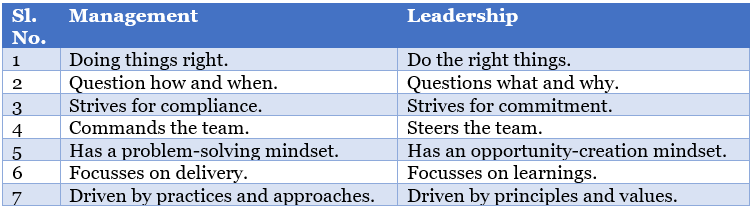
Management involves directing the team to move from one point to another with a known set of expected behaviors. Leadership is not about directing, but about guidance with discussion and dialogue (not debate) from one state to another.


The comparison table below notes a few more differences between management and leadership.


Now, you may be wondering how one can have such diverse thinking and such a leadership mindset at the same time? The key is finding a balance based on the situation and the context.

Authority Vs. Leadership *** UPDATED ***
In many cultures, leadership directly equals authority. Command and control is the only way to get things done.

Putting that into an organizational perspective, line or functional managers mostly follow one leadership style: command and control (autocratic), because they control salaries and raises.

However, as a project manager, most of the time, you won’t have this form of formal or positional power with its uses and/or parenthetical abuses. The best thing to do in such a case is to recognize that leadership is not authority.

Authority is given to a person by formal means, document, or title, but the following is also true:

  • Authority may not motivate. If that were the case, every country would produce a hundred Olympic gold medalists. Does that happen?
  • Authority doesn’t mean expertise. A person with high expertise, knowledge, and skills is, in fact, more followed than one with authority.
  • Authority doesn’t mean respect. Intrinsic respect from one’s heart is different from enforced respect.
  • Authority doesn’t imply trust. People may comply with authority, but don’t always commit to it.

So, what should one do? I’ll outline two things I have learned:

  • Recognize that the best form of power is not formal. It is expert power, relational power, and persuasive power, among others. Such is exercised mostly through inspiration, because your actions - not words - inspire others to dream, act, and be more.
  • Understand that leadership styles can vary. It’s best to apply leadership styles based on context and situation. We will review several leadership styles in a moment.


Leadership Growth Levels
*** UPDATED ***
The growth levels of leadership are depicted in the below figure. This is based on my research, experience, and over a decade of interactions with thousands of managers. You may be seeing it for the first time. It is taken from my new course: A Masterclass in Leadership.


The lower levels of leadership are Positional (Level-1/L1) and Relational (L2). At L3, Inspiration, you have started to truly move up. When you deliver results (L4), you are established as a leader. The higher levels of leadership are Mission (Purpose), and Passion. The highest level is Culmination (L7), which very few reach.

Siddhārtha Gautama, known worldwide as the Buddha, the self-awakened and enlightened one, was one such leader in spiritual dimension. The teachings of leaders at the highest-level echoes in eternity.

Such a leader doesn’t want to be photographed everywhere, but people want to be photographed with the leader. The leader doesn’t put his picture everywhere, but people carry his picture and frame it inside their homes. The leader doesn’t pay the media to promote him or her 24*7 as we see today, but people come voluntarily to listen as they can smell: a real change is in the air.

I’d also like to say the best leaders are finally invisible. This type of leader is not seen but felt because he has enabled other leaders!

Leadership Styles
Various leadership styles are noted and described in the below table:


So, which leadership style is the best?

My answer to that is: not one in particular, as leadership style depends on a variety of factors. Sometimes, you may have to combine multiple leadership styles.

A Leadership Style Exercise
Let’s do an exercise to understand leadership styles better. In the below table, we have a number of situations. Think about which leadership style fits the particular situation.
 
The answers are explained in the below video [Duration: 04m:52s], which I’ve prepared in support of this article. The content of it is taken from my leadership course. Additional explanations and new leadership styles are also provided. For a better audio-visual experience, you may want to go full HD and plug-in your earphones.


Conclusion *** UPDATED ***

Before I sign off, I want to mention some frequent questions that come up regarding leadership.

Why does leadership fail?

One key reason is that leaders don’t follow their own preaching! The leader must role model the behavior he or she is expecting from others. It’s the ‘setting examples for all’ part in the opening quote.

How does one become a leader?

Also from Aunt May:

“I believe there’s a hero (leader) in all of us, that keeps us honest, gives us strength, makes us noble, and finally allows us to die with pride. Even though sometimes we have to be steady and give up the thing we want the most.”

An oft-ignored leadership quality is sacrifice. As a leader, you have to sacrifice a lot. You have to give a lot without expecting anything in return. Managers don’t sacrifice, but for a leader it’s a must.

Many don’t understand the importance of sacrifice. This is important because to get you must give first. It’s paradoxical, but true. But how many of the currently “supposed leaders” do that? You know the answer! You see, true leadership is exceptionally hard.

Peter gets Aunt May’s message. He is teary-eyed but more determined; emotionally choked, yet raring to go. He also understands one painful aspect of leadership 
– making many sacrifices, but still being hated. He also understands there are many who love him dearly. So, putting his disappointments behind him, he gives it another try the very next day. 

As Aunt May rightly tells, the hero is inside you. A leader is also inside you. Search for that leader, and when you discover it, nurture and expand it with the levels and styles we have reviewed. The path may be long and arduous. Sometimes you might stumble or even fall. But, if you are true to your heart, you are unlikely to be disappointed with the result.

I wish you all the very best in your journey and welcome your thoughts and comments. 

--

This article was first published by MPUG.com on 13th September, 2022. This is an updated version.


References
[1] NEW Course: A Masterclass in Leadership, by Satya Narayan Dash

[2] A Guide to the Project Management Body of Knowledge, by Project Management Institute


Saturday, December 24, 2022

What’s New: Management Yogi's Certified Hybrid-Agile Master Professional (CHAMP)


I’m pleased to announce a complete update for the below unique, hands-on, practical oriented, comprehensive course:

CERTIFIED HYBRID-AGILE MASTER PROFESIONAL (CHAMP) 

This course was available to Hybrid-Agile practitioners by the end of last year, 2021. Since then, it has been used by many professionals around the world. It’s a complete video course on Hybrid-Agile Management with both theory and practical, covering Hybrid-Scrum, Hybrid-Kanban and Hybrid-ScrumBan

This is the only such course in the world with a very strong emphasis on hands-on, practical applicability and in-depth learning. Literally, there is no such certification in the world. You can make your search!

You can refer to the earlier post on this course in the below link:
https://www.managementyogi.com/2021/11/certified-hybrid-agile-master-with-ms-project-online-course.html

The updates have happened after months of preparation, inputs from users/learners of this course. A number of inputs have been taken from real-world Hybrid-Agile practitioners. Also, over the course of last year (2021) and this year (2022), I've published a number of articles which generated a number of questions and feedback. Hence, this update. 

For existing customers of this course all the below updates will be FREE of cost.

What’s New in the Course – CHAMP Certification?

Below are the top highlights for the updates to this certification course. 

1. The Course and Certification has been RENAMED.

Earlier the course was called “Certified Hybrid-Agile Master”. It has been renamed as “Certified Hybrid-Agile Master Professional” or simply CHAMP certification. It sounds better and post certification you can put it in your signature. 

Note: There is no extra certification cost. It's part of the course package.

2. TWO NEW Full-length Question and Answer sets.

This certification course now comes with two full length question sets. In earlier edition, the question sets were not available. The question sets will have 50 questions each with detailed answers. This will help you master the concepts of Hybrid-Agile management. 

3. A NEW Step-by-Step Guide for MS Project Agile installation.

MS Project Agile installation (MS Project Online Desktop Client) is a must to pursue this course. However, as seen in the last one year, quite a few struggle with the installation of the software. Hence, a step-by-step guide has been made available for all course subscribers. 

The step-by-step guide will be downloadable for you. 

You can learn the primary steps to install MS Project Online Desktop Client in this post. Detailed documentation for download will be available for course subsribers.

4. A NUMBER of NEW practice questions for every lesson.

In the earlier version of the course, no practice questions were available. Based on inputs from course subscribers, a number of practice questions have been added for every lesson.

You have to complete the videos, do the exercises and immediately attempt the practice questions. You will also have detailed answers available. This will help you master the concepts and prepare for the CHAMP certification exam. 

5. A number of NEW Agile Tips and Tricks.

The course now comes not only with tips and tricks for MS Project, but also tips and tricks with MS Project Agile with emphasis on Hybrid-Scrum, Hybrid-Kanban and Hybrid-Scrumban management. Together now you have 140 tips and tricks. All of these will be downloadable

Combining the tips given throughout the discussion of this course and new tips provided, you will have 100s of them. 

6. NEW Notes for Theory part of CHAMP course.

A number of learners (customers) of this course wanted to have theory notes of this course. It is not available for the theoretical aspect of Hybrid-Agile management. The practical aspects are demonstrated with videos. 

The theory notes will be downloadable for you.

7. Complete CHANGE for existing questions. 

The questions are now mostly situational. The question also has a mixture of theory (20%) and practical (80%). With this, you will have a better understanding of real-world Hybrid-Agile management.

Do note that you have to take the Certification Exam, which is part of the course package. These questions are also now completely changed.

8. UPDATED Videos in the CHAMP certification.

Few videos are updated with more detailed explanations. The course has been informed to be very exhaustive by Hybrid-Agile practitioners. These additions will add more depth to the course.

9. UPDATED Course Index File.

As the course has seen a number of changes, the index file has also been changed. It’s available towards the end of this post with the latest changes and updates.

Top Features: Certified Hybrid-Agile Master with MS Project

  1. Total Video Duration: 14+ hours [updated]
  2. Number of Videos: 138 [updated]
  3. Number of Lessons: 10 (+2) [1 new]
  4. Two full-length Q&A Sets: Each set 50 Q&As [newly added
  5. Total Number of questions, including lesson-end: 150 (approx.) [newly added]
  6. Total Exercises (Practical): 100+ [downloadable]
  7. End-course exam and credential as a Certified Hybrid-Agile Master Professional (or CHAMP)
  8. 140 of tips and tricks on MS Project and MS Project Agile [new, downloadable]
  9. Step-by-Step installation guide for MS Project [new, downloadable]
  10. In depth understanding of Hybrid Scrum, Hybrid Kanban, and Hybrid ScrumBan.
  11. Ability to apply the concepts with the Hands-On tool of MS Project Agile.
  12. Generate various reports such as Burndown/Burnup Chart, CFDs, Hybrid Sprint Reports, Histograms and Pie Charts, Earned Value reports, among many others.
  13. A large number of exercise and solutions files (over 100), which you can download, use and practice.
  14. A large number of tips and tricks points to know throughout the course.

The details on it this course, with information on additional features, are available also available at:

https://www.managementyogi.com/p/certified-hybrid-agile-master.html


What is the Certification Offered by CHAMP Course?

This course comes with an end-exam with a set of questions, which covers both theory and practical of Hybrid-Agile Management. 

The exam has 50 questions to be taken in 60 minutes (1 hour). To clear the exam, you need at least a 70% score. 

With completion of the course and clearing of the end course exam, you will receive the unique credential: Certified Hybrid-Agile Master Professional or CHAMP.

What is Full Money Back Guarantee for CHAMP Certification?

The premise is simple.

Go through the complete course for 15 days. 100% video content of this course will be available to you. If you don’t like the course, I’ll refund your full money. 

Note: You can also evaluate the videos before paying any money. Twenty (20) videos will be available for your evaluation, even before your purchase.

Applicability and Validity: CHAMP Certification

  • Theory Used: Hybrid-Agile Management combining Waterfall, Scrum and Kanban
  • Software Used: MS Project 2019 Online Desktop Client 
  • Theory Pre-requisite: Project Management, Scrum and Kanban Frameworks
  • Software Pre-requisite: MS Project 2021/2019/2016/2013 and MS Project 2021/2019/2016 Agile
  • Course Duration: 3 or 6 months from the date of purchase
  • Price: $95 USD / Rs 7,599 (for 3 months)
              $159 USD / Rs 12,719 (for 6 months)
  • Payment – paypal.me/managementyogi
    (Login, Send your payment to paypal account of ndsatya@gmail.com, Enter the amount; Invoice will be generated after payment)
    OR, you can pay via Bank Transfer or Payment. For this, please send a mail to managementyogi@gmail.com to get account the details.
  • Available since: November, 2021 (Updated December, 2022)
  • Primary Format: Video 
  • Course Extension: As per your need
    (Price calculation will pro-rata)
  • Status: Available
    (accessible via laptop/desktop)

Updated Course Index: CHAMP Certification

The complete course breakdown for the CHAMP certification course is shown below, with the new and updated ones highlighted in green. It details the hours of learning, number of videos and practice questions, full-length question sets along with various hands-on exercise details. You can scroll to see the full content.


Conclusion

With this certification course, you will have mastery over Hybrid-Agile Management. This uniquely credential of CHAMP also establishes you as a solid professional in Hybrid-Agile management space.


Monday, November 14, 2022

Risk Register and Risk Report: What Are The Differences?


Risk Register and Risk Report are two key artifacts in Risk Management. Risk Report has been introduced for the first time in the PMBOK Guide, 6th edition and continues to be there in the PMBOK Guide, 7th edition. Also, the Risk Register will be used in projectsprograms and portfolios as well as in Agile management.

In fact, in the latest PMBOK Guide, 7th edition, Risk Report is informed to be one of the commonly (and frequently, emphasis mine) used reports, if you are really doing risk management. The commonly used reports noted in the PMBOK 7th edition are:

  • Risk Report, 
  • Quality Report, and 
  • Status Report. 

Needless to say, reporting is an important aspect of management.

Also, if you are preparing for the Project Management Professional (PMP) exam or Risk Management Professional (RMP) exam, you have to clearly know the contents of both the register and report. Specifically for the RMP exam, from 2022, the PMBOK Guide 7th edition (and tacitly 6th edition) will be one of your reference sources

In this article, we will see the differences between these two key project and risk management artifacts in an exercise format. We will also see in which processes the content of these two project documents are populated. 

Content of this article have been taken from the following video courses, where in-depth explanation and guidance are available:

Now, let’s start with the differences between Risk Register and Risk Report. 

Differences (Exercise): Risk Register and Risk Report

As shown below, we have a table with Risk Register in the second column and Risk Report in the third column. Try to note down the differences between the Risk Register and Risk Report on your own first, before checking the answers. 


Were you able to find out at least five differences?

Scroll down to see the answers.

. . .

. . .

. . . 


In the below table, we have the differences noted.


Next, let’s try another exercise. 

Processes (Exercise): Risk Register and Risk Report

In this exercise, we have the Process Name(s) noted in the third column. You have to inform in which process (or processes), the content of the Risk Register and Risk Report are noted.

Following are the processes in Risk Management:

  • Plan Risk Management
  • Identify Risks
  • Perform Qualitative Risk Analysis (Perform QLRA)
  • Perform Quantitative Risk Analysis (Perform QTRA)
  • Plan Risk Responses
  • Implement Risk Responses
  • Monitor Risks


I believe you have tried it first on your own, before checking the answers.

Scroll down to see the answers.

. . .

. . .

. . . 

In the below table, we have the process names noted for the contents of the Risk Register and Risk Report.


A Sample Risk Register

Below is a sample of a real risk register.


As shown above, in the Risk Register, we have Risk ID, Risk SWOT value (threats or opportunities), Risk Title, Risk Pre-mitigation parameters such as probability, impact on schedule, cost, performance etc., and risk score.

A Sample Risk Report

Below is a sample of a real risk report.


As shown above, in the Risk Report, we have information about overall project risk, the project chances of success with respect to schedule and cost with probabilistic analysis, sensitivity analysis, summary information about individual project risks, risk audit information and a summary conclusion.

You can learn more on the 
flow of risk register and risk reports, and how they are populated as they pass through the risk management processes in the following article.

Fundamentals of Project Risk Management Framework

Conclusion

In my interactions, few managers, who understand the value of risk management, use Risk Register! On the other hand, Risk Report is almost unheard of, because organizations don’t take risks seriously. It creates problems later with many change requests (CRs) or issues overwhelming the projects, programs or portfolios. Do also note that issues are risks, which have already occurred. I’ve seen many such instances and projects running into real trouble. 

When you clearly know the content of these two project artifacts and know how they are prepared, it’ll help you immensely in not only managing the risks, but also scope management, schedule management and cost management aspects of a project. 


PMP Live Lessons and RMP Live Lessons:

PMP 35 Contact Hours and RMP 30 Contact Hours: